
To add or remove health insurances from your profile, log in and navigate to the Insurances & Fees tab on the Members Portal under Edit Profile. Then, select the Edit button to initiate changes:
Removing a health insurance you are no longer paneled with
- Uncheck any insurances you wish to remove under Add/Remove Health Insurances. Select Submit at the bottom to save changes.
Adding a health insurance you are newly paneled with
- Search for the name of the insurance you would like to add under Add/Remove Health Insurances. If there are related insurances, you may be prompted to add those as well. Then, check the box next to any you'd like to add and check the agreement box and select Submit to save your changes.
-
If you have multiple locations, you can select the health insurance you are paneled with by state.
Note: That this setting only appears if you have more than one location configured under Availability & Locations.
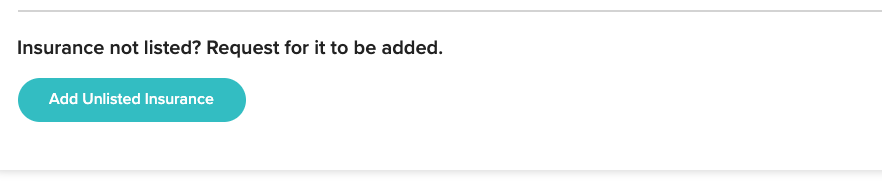
- If you are paneled with an insurance not currently listed, you can request for it to be added by selecting Add Unlisted Insurance, and then Submit.
Temporarily marking your practice as available or unavailable to clients with a particular insurance you are in-network with
- Toggle the indicated insurance under Open Slots by Insurance from Yes to No as needed.
Comments
Please sign in to leave a comment.